
LionCloud VPS Control Panel overview

LionCloud VPS Control Panel overview

The LionCloud panel appears in the Client Area when you open a VPS from your Services. It lets you control your server without SSH.
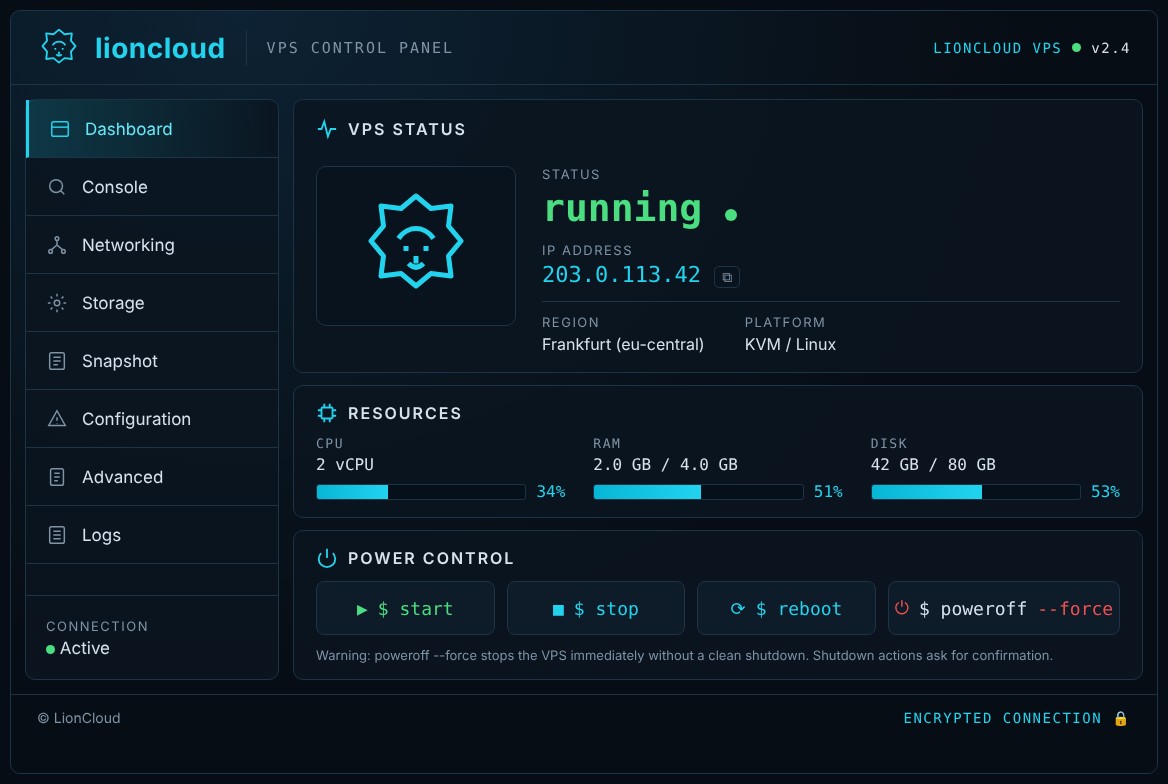
LionCloud VPS Control Panel

What the main screen shows

  • VPS status: whether the server is running or stopped, its IP address (with a copy button), region and platform.
  • Resources: live CPU, RAM and disk usage.
  • Power control: the start, stop, reboot and poweroff --force buttons.

The left menu

Dashboard, Console (VNC), Networking, Storage, Snapshot, Configuration, Advanced (reinstall, rescue, root password) and Logs.

See also: “How to start, stop and restart your VPS”, “How to open the VNC console”, “How to reinstall the operating system”, “Rescue mode”.

  • lioncloud, vps, controlpanel, πίνακαςελέγχου, vpspanel, κατάστασηvps, πόροι
  • 0 Users Found This Useful
Was this answer helpful?

Related Articles

How to reset the root password of your VPS

Reset the root password If you forgot your root password, you can set a new one from the panel....

Rescue mode: how to recover a VPS that does not boot

Rescue mode Rescue mode boots your VPS into a temporary, safe recovery system. From there you can...

How to reinstall the operating system (Reinstall OS)

Reinstall the operating system ⚠ Warning: reinstalling erases ALL data on the disk and cannot be...

How to open the VNC console of your VPS

VNC console The console gives you the server’s “screen” in your browser. It works even when SSH...

How to start, stop, restart and power off your VPS

Start, stop, restart and power off Power actions are in the Power control section of the...