
How to open the VNC console of your VPS

VNC console

The console gives you the server’s “screen” in your browser. It works even when SSH or the server’s network is down, for example after a wrong firewall rule.
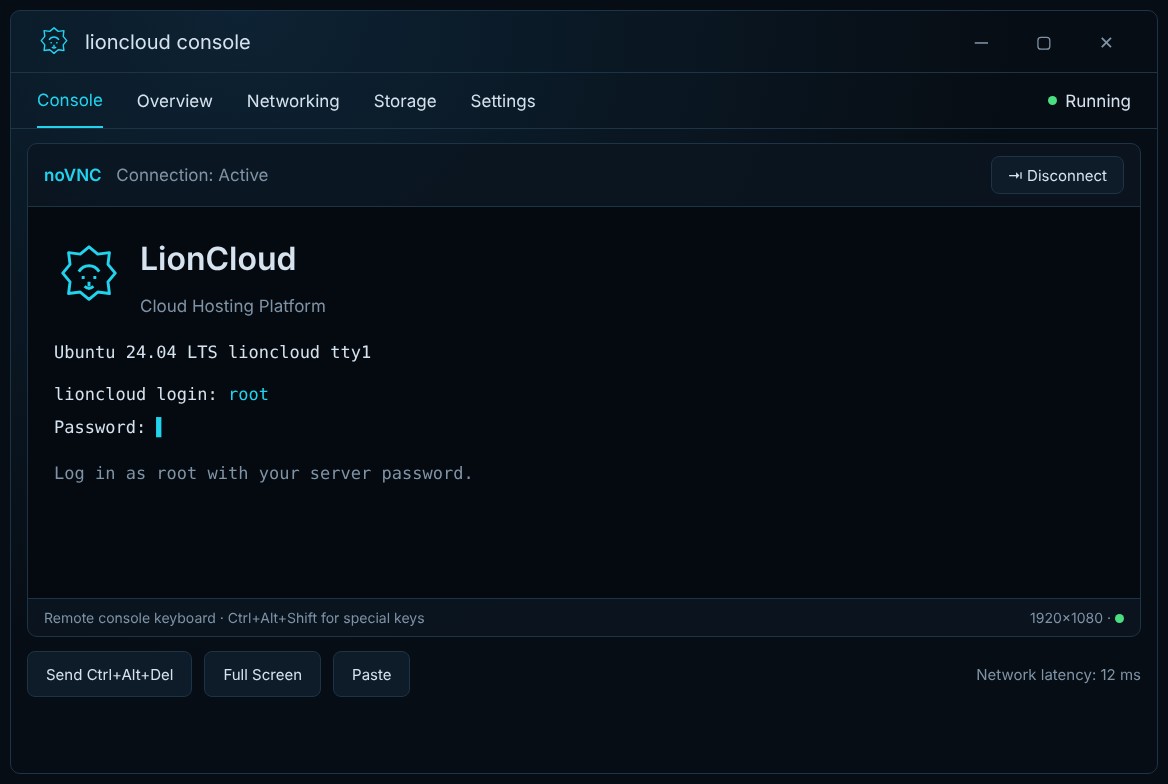
LionCloud VNC console
  1. Open the VPS and click Console in the left menu.
  2. The console (noVNC) opens in a new tab. Wait until it shows Connection: Active.
  3. Log in with the root user and your password.
  4. When you are done, click Disconnect.

Useful buttons

  • Send Ctrl+Alt+Del: sends the key combination to the server (not to your computer).
  • Full Screen: enlarges the console.
  • Paste: pastes text from your clipboard, handy for long passwords.

When to use it: to fix firewall or network settings, watch the boot process or error messages, or whenever you cannot log in over SSH.

  • vnc, console, κονσόλα, novnc, sshδενδουλεύει, firewall, boot, lioncloudconsole
  • 0 Users Found This Useful
Was this answer helpful?

Related Articles

How to reset the root password of your VPS

Reset the root password If you forgot your root password, you can set a new one from the panel....

Rescue mode: how to recover a VPS that does not boot

Rescue mode Rescue mode boots your VPS into a temporary, safe recovery system. From there you can...

How to reinstall the operating system (Reinstall OS)

Reinstall the operating system ⚠ Warning: reinstalling erases ALL data on the disk and cannot be...

How to start, stop, restart and power off your VPS

Start, stop, restart and power off Power actions are in the Power control section of the...

LionCloud VPS Control Panel overview

LionCloud VPS Control Panel overview The LionCloud panel appears in the Client Area when you open...